Open
Find the settings page
Renma stores every setting locally in Chrome. To reach the panel, go to chrome://extensions, click Details on Renma, then Extension options.
Shortcut: right-click the toolbar icon and pick Options.
chrome://extensions

renma.
v1.3 · enabled
Or right-click the Renma toolbar icon → Options.
Behavior
Flip the master switches
Three switches govern the whole extension. The master toggle pauses renaming globally — useful when you're doing a bulk download and want the original names.
Only images restricts Renma to actual image MIME types. Notifications shows a small desktop toast so you can spot what got renamed to what.
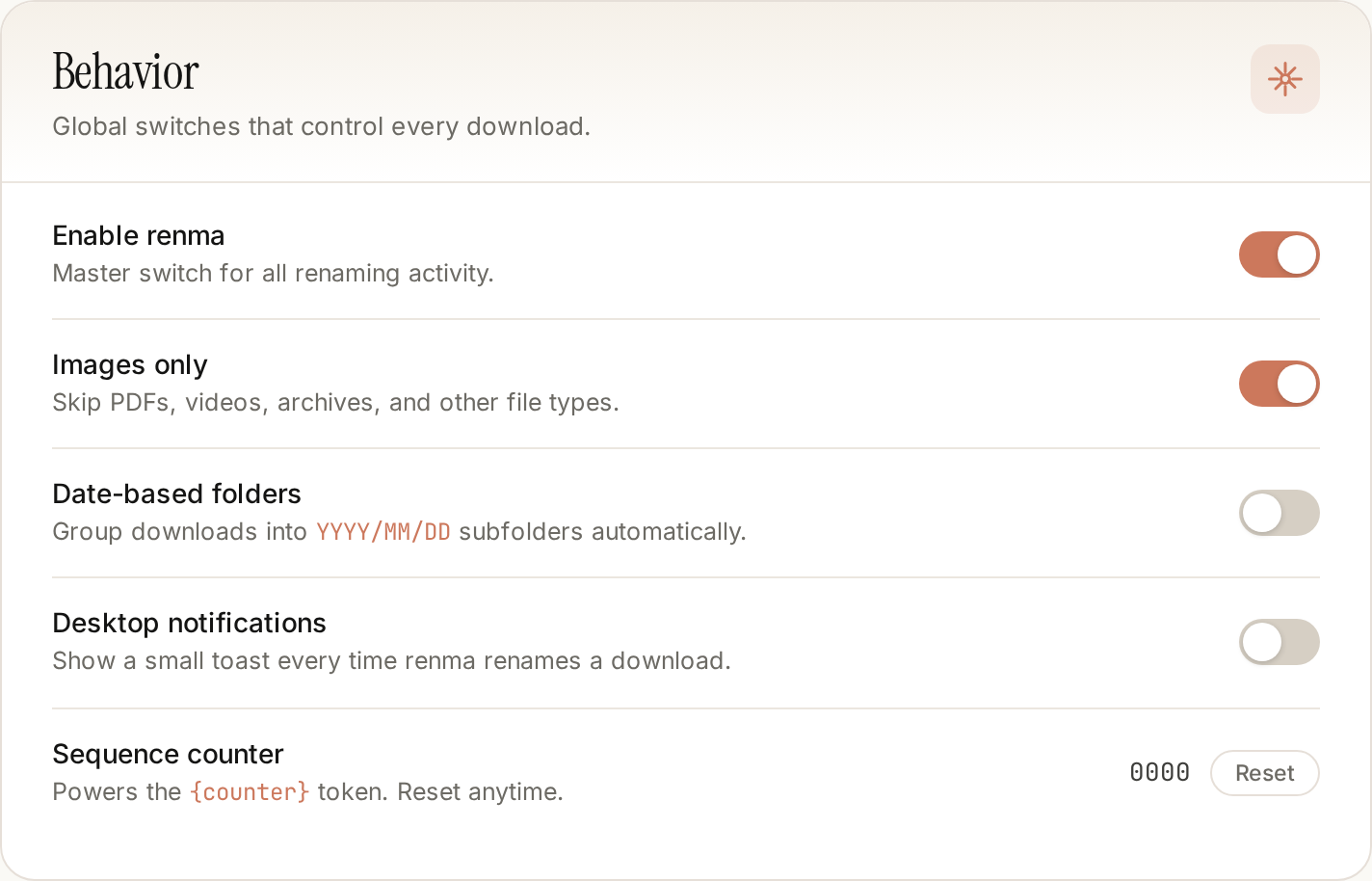
- 1Master on/off — pause Renma without uninstalling.
- 2Only images — skip PDFs, ZIPs and other file types.
- 3Notifications — desktop toast on every rename.
Template
Design the filename
The template controls every renamed file. Click any token chip to insert it at your cursor — common combos:
- · {prefix}_{timestamp}.{ext}
- · {prefix}-{date}-{counter}.{ext}
- · {prefix}_{dimensions}.{ext}
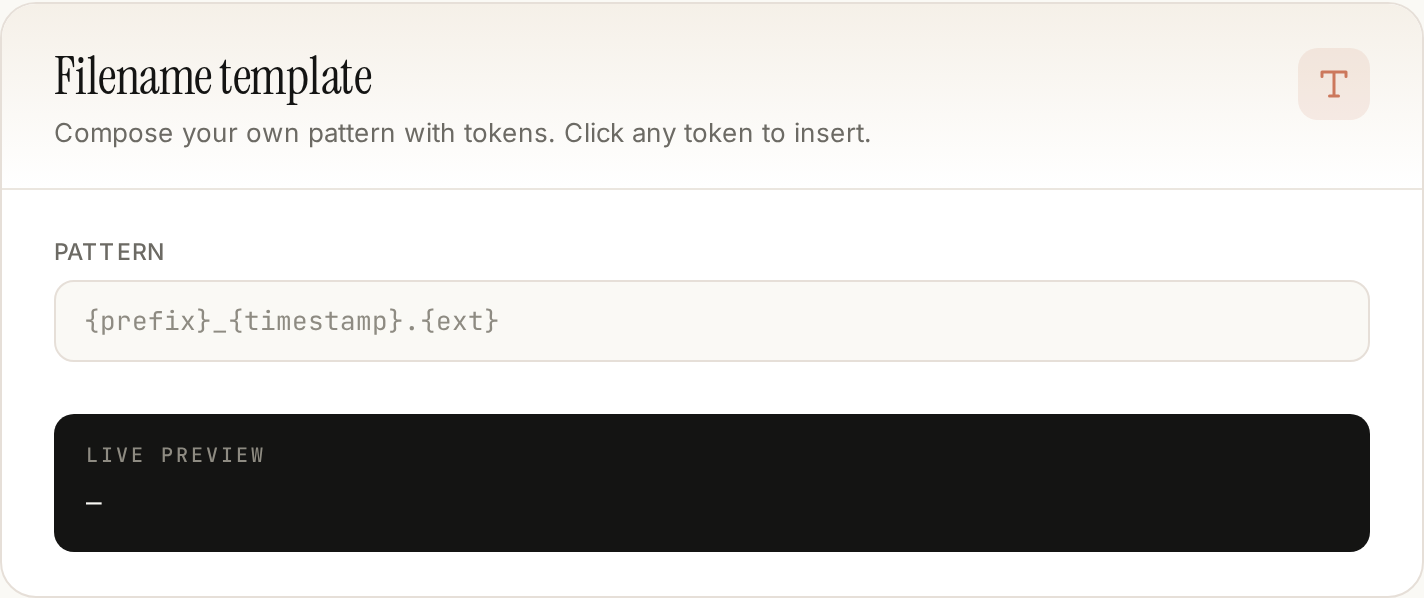
- 1Template input — mix any tokens with underscores, dashes, dots.
- 2Live preview — what a real Unsplash download would look like.
Rules
Teach it your domains
Renma ships with sensible defaults (OpenAI → AI_Generated, etc.). Add your own to route specific sites into named prefixes and folders.
Example: dribbble.com → Dribbble → refs/ui.
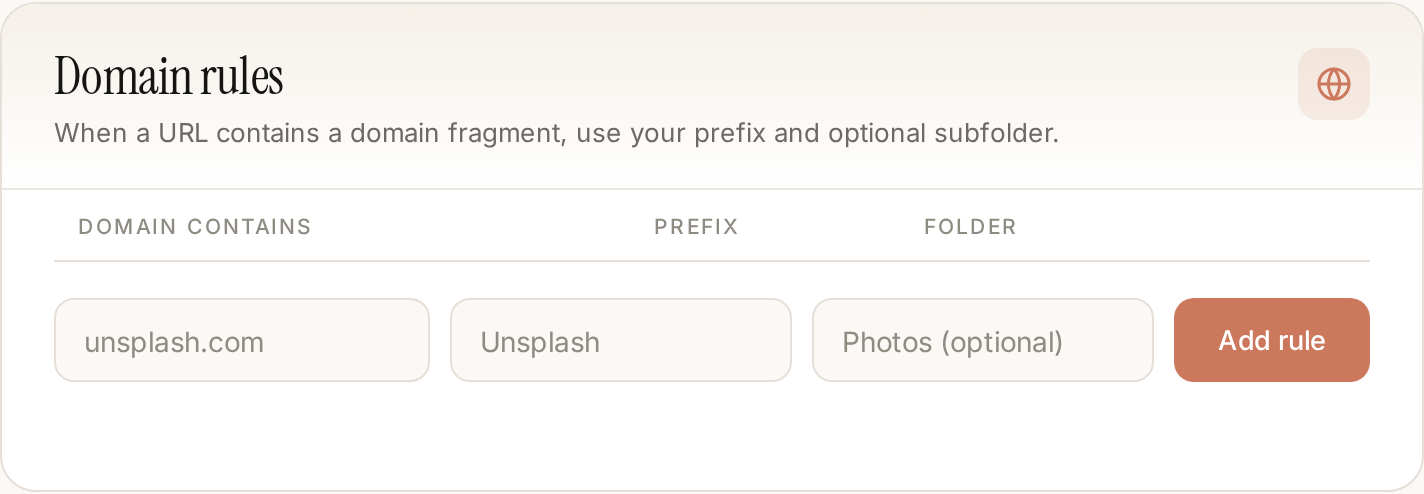
- 1Domain — match on any part of the URL host.
- 2Prefix — becomes {prefix} in the template.
- 3Folder — optional subfolder inside Downloads/.
Scope
Pick where Renma runs
Use Whitelist when you only want Renma on a handful of sources. Use Blacklist to keep your bank's downloads untouched. All sites is the default and works for most people.
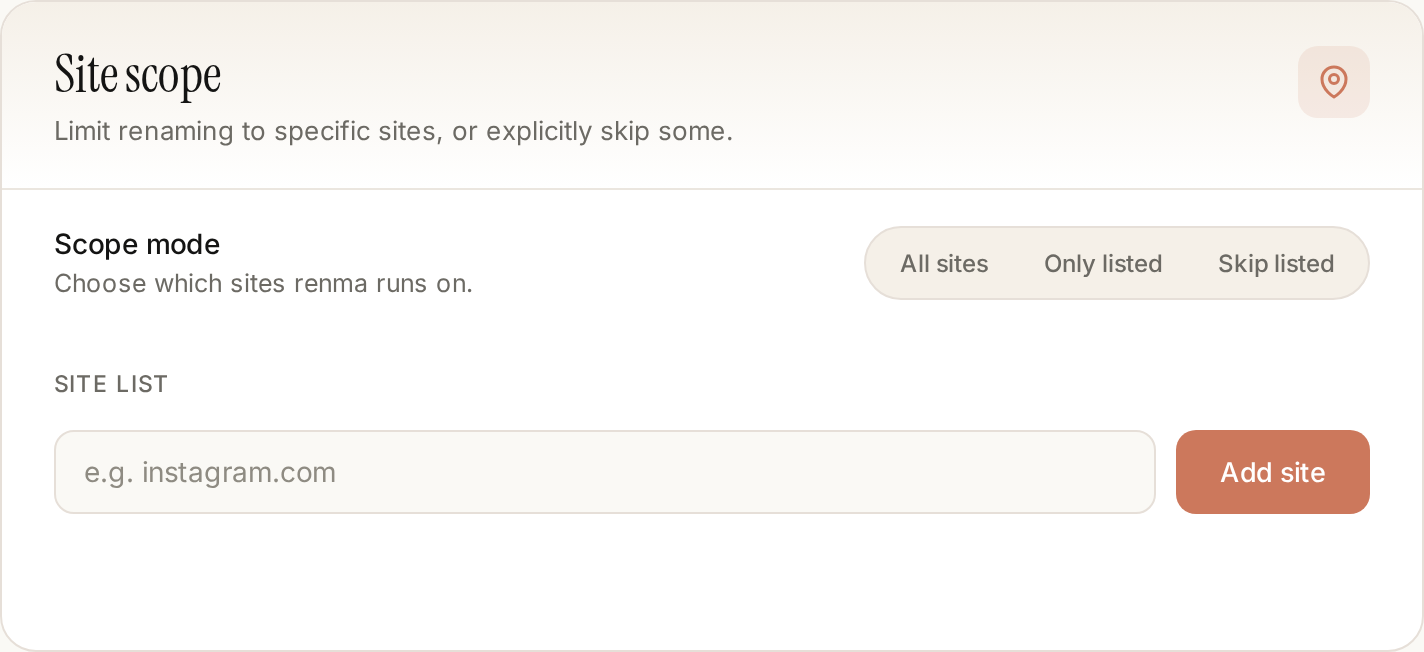
- 1Mode: run everywhere, only listed sites, or exclude listed sites.
- 2Site list — one domain per chip.
Insights
Duplicates & stats
Tag keeps duplicate downloads but marks them in the popup so you can spot repeats. Skip refuses to re-download the same URL entirely.
The stats panel is fully local — nothing leaves your machine. Hit Reset to zero it any time.
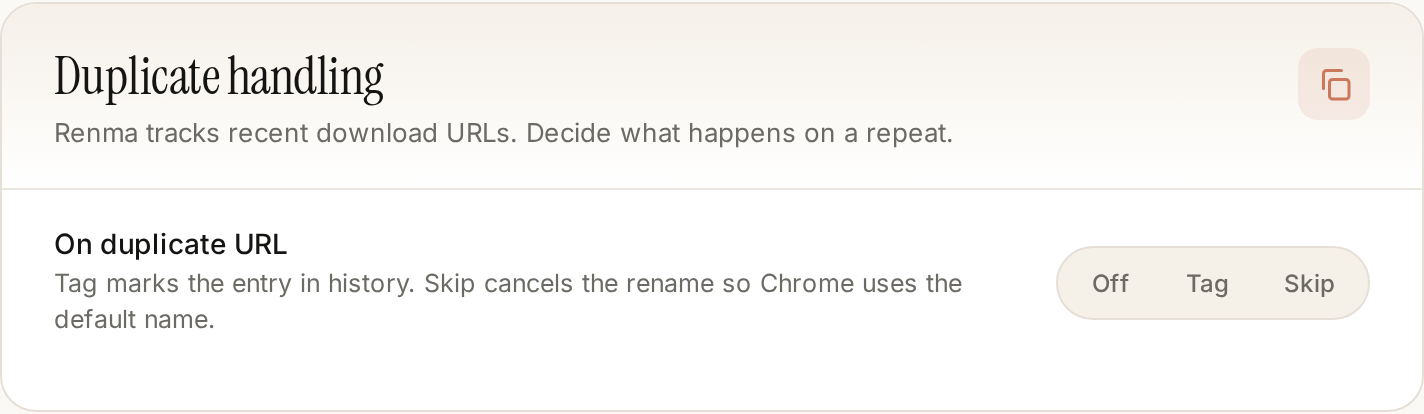
- 1Off / Tag / Skip — how to treat the same URL twice.
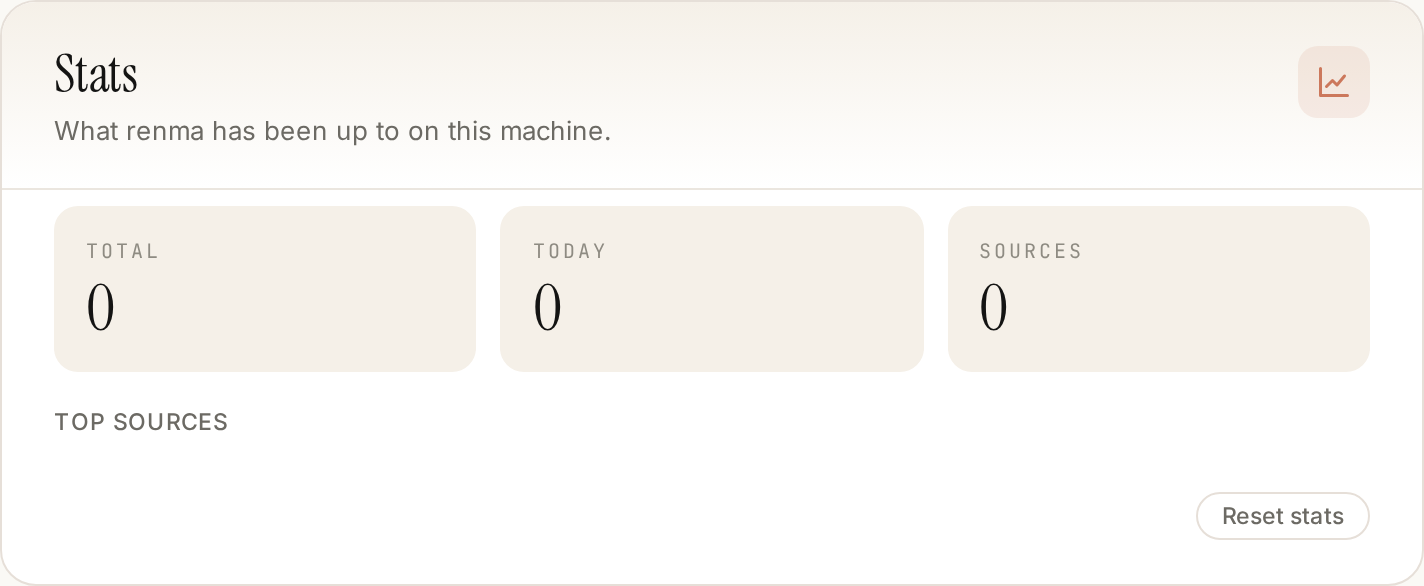
- 1Totals: lifetime, today, unique sources.
- 2Top-domain bars — see where your images come from.
Portable
Backup & restore
Moving to a new laptop? Export once, import on the other side. Templates, rules, scope, duplicate mode and toggles all travel together.
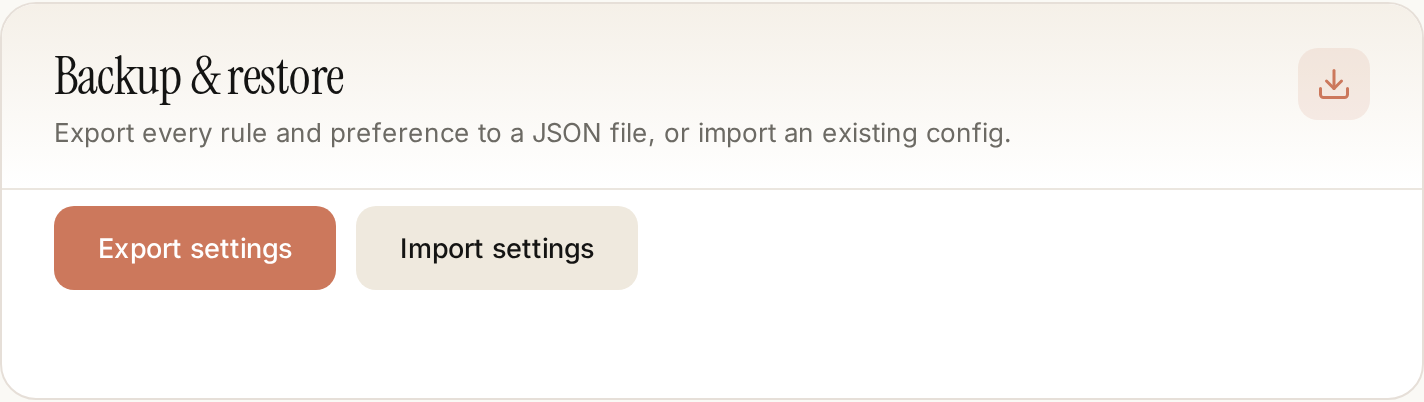
- 1Export — download your full config as JSON.
- 2Import — drop the same JSON on a new machine.
Bonus
The toolbar popup
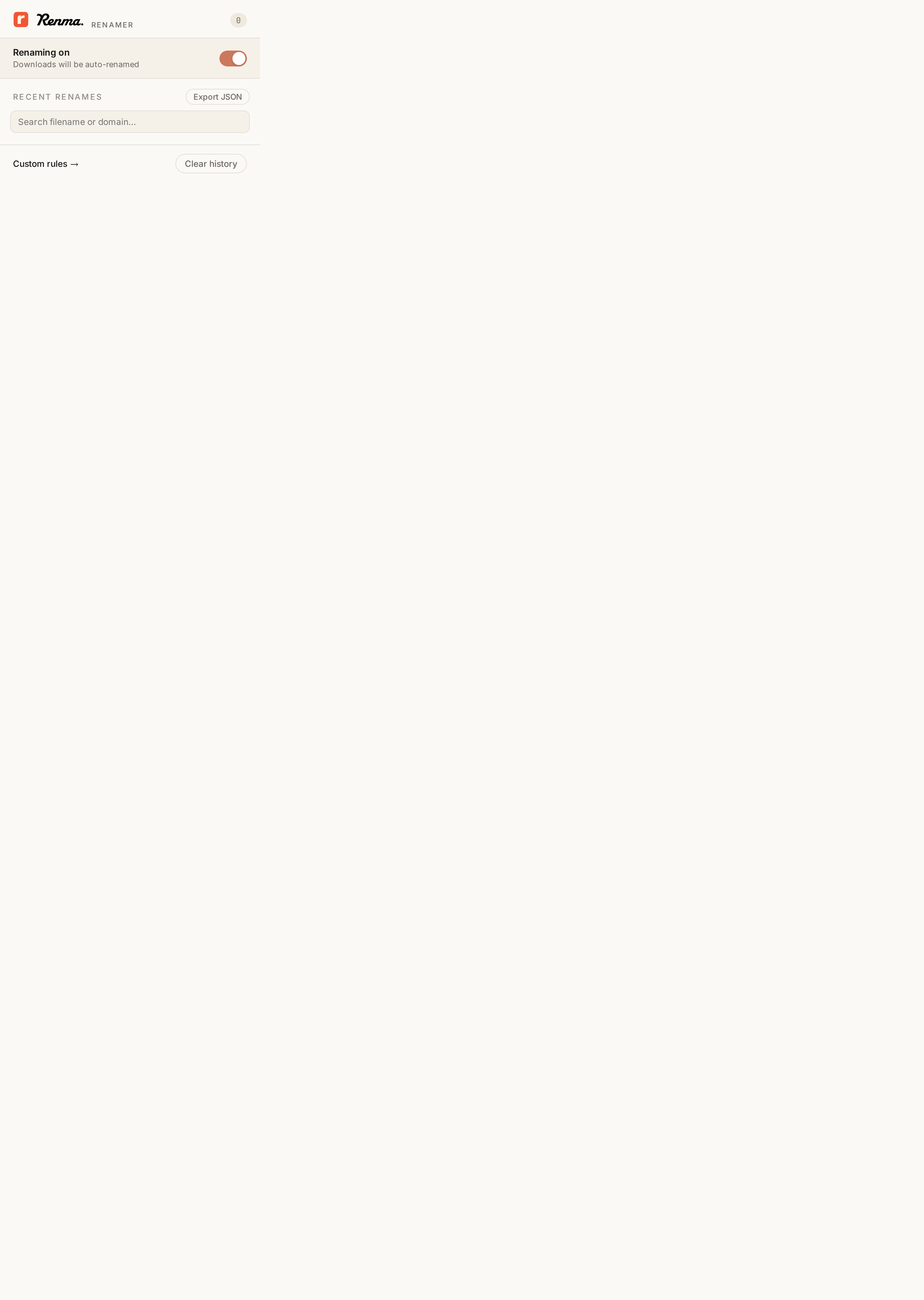
Click the Renma icon in your Chrome toolbar to see the last 50 renames, search them, export as JSON, or hit Undo to revert the most recent one.
That's the whole thing.
Install Renma and every image download from here on out lands with a proper name.